Details tab
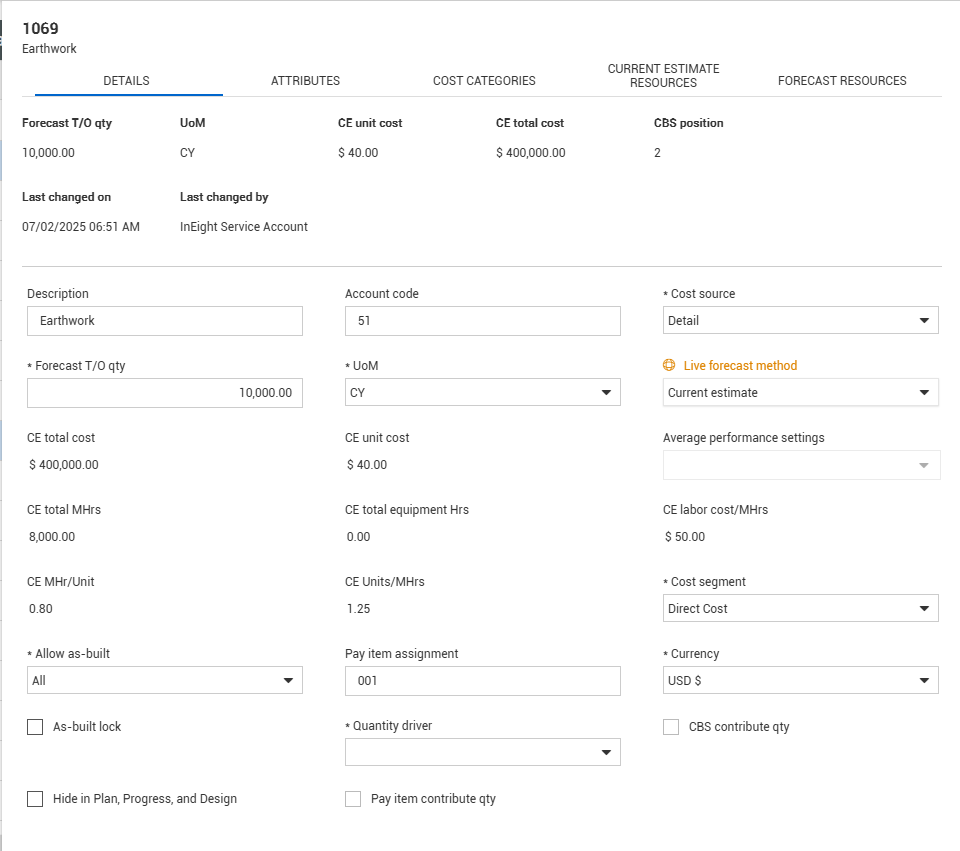
The Details tab contains the values and settings related to the cost detail of the item.
Below is an explanation of some of the key settings on the Details tab.
|
Term
|
Function
|
|
Cost source
|
Indicates how costs are entered on the cost item.
|
|
Live Forecast method
|
Determines the Forecast Method for the cost item. For more information, see Forecasting overview.
|
|
Cost segment
|
Categorizes whether the cost item is a direct or indirect cost.
-
Direct Cost – costs that directly pertain to the deliverables (pay items) of the job
-
Job Overhead – Overhead costs associated with running and managing the job (e.g., management, jobsite facilities)
-
Business Overhead – Overhead costs associated with running the business (not directly related to running the job)
-
Subcontract – subcontract associated costs
|
|
Allow as-built
|
Determines whether you can enter actual costs and quantities for a cost item.
-
None – Cost item does not accept cost or quantities. This is typically seen in Superior cost items
-
All - Allows a cost item to accept both direct costs and quantities
-
Quantities – Cost item only accepts quantities
-
Cost – Cost item only accepts costs, man hours, and equipment hours.
|
|
Quantity driver
|
Superior cost item will have the Forecast T/O qty update when the superior cost item (parent cost item) receives an update. The change to the qty will be the original value multiplied by the same multiplier that was applied to the superior cost item.
For example: if the superior cost item qty doubles, the item with Superior CI will double as well. Cost items with Fixed as the selection will not be affected by changes to the parent cost item.
|
| Cost item contribute quantity |
Checked cost items will have the Forecast T/O qty roll-up to the parent cost item if the UoM on both of the items are the same. |
| Hide in Plan, Progress, and Design |
Select this feature to make the cost item unavailable for claiming in InEight Plan, Progress, and Design. For more information, see Hide in Plan, Progress, and Design. |
|
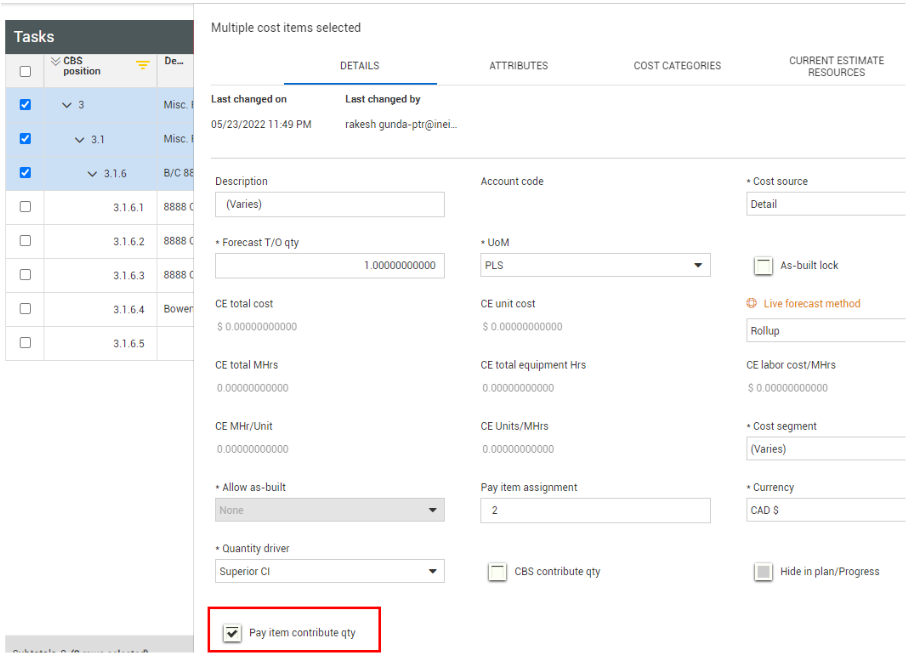
Pay item contribute quantity
|
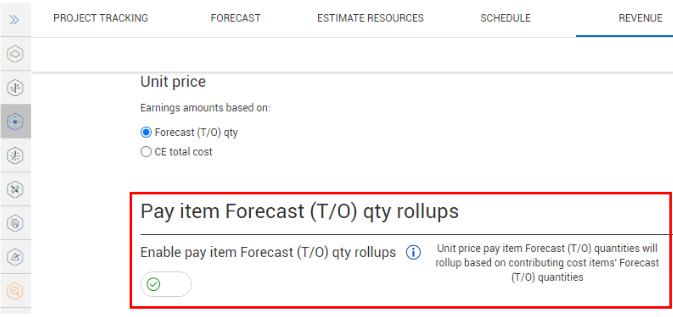
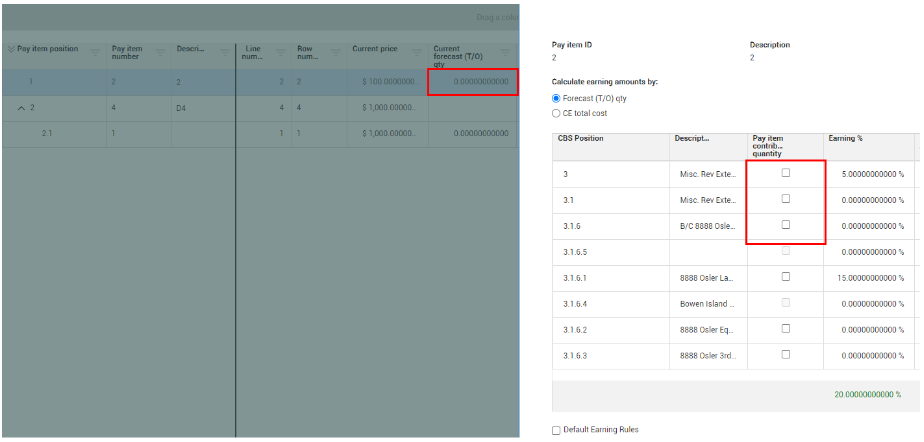
Checking this box lets you choose which cost items contribute to the Pay item's forecast (T/O) quantity and can affect earnings rules for the associated pay item. This field is only visible if you have the Enable Pay item Forecast (T/O) quantity rollups setting turned on in Settings > Control > Revenue.
|
Pay item contribute quantity
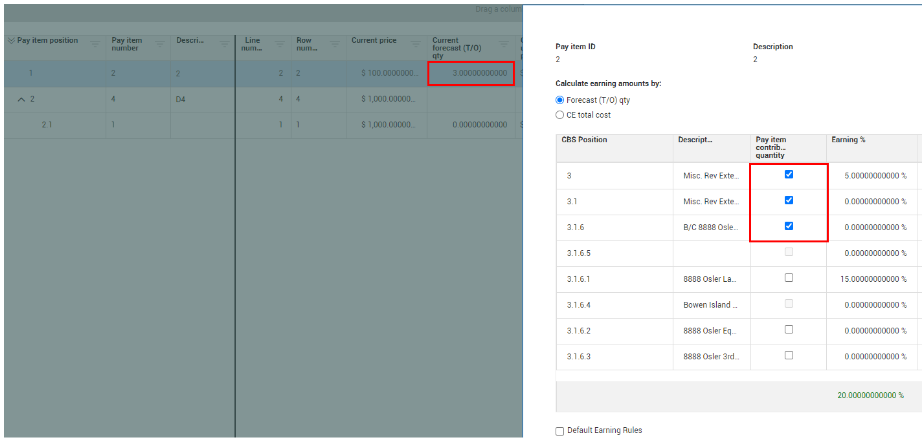
The Pay item contribute qty function works only when the Pay item Forecast (T/O) qty rollups toggle is set to On in Settings > Control > Revenue. If you have a unit price pay item, its forecast (T/O) quantity is the sum of all the contributing cost items forecast (T/O) quantities.
This function lets you define which cost items roll up their quantities to a pay item.
In the CBS, you can quickly modify the pay item contribute quantity either in bulk or by selecting a single cost item.
Selecting the Pay item contribute qty check box updates both the Current forecast (T/O) and the Update earning rules, only if Earnings rules are set to calculate based on Forecast (T/O) qty value in Pay items.
Deselecting the Pay item contribute qty check box in the CBS also updates both the Current forecast (T/O) and the Update earning rules.